Technology5 min read
How I Replaced Arc with Zen Browser
The best alternative to Arc, so far.
In this article
Why I Left Arc
I started using Arc early on and loved the sidebar, folders and favourites. After a couple of years, though, it had become slow and power-hungry on my Mac. The announcement on 25 October 2024 left me wondering where it was going, so I started looking for something else.

My Must-Have Features
After two years with Arc, there were a few things I didn’t want to give up.
Performance & Design
I wanted something easier on my Mac’s battery. I also wanted to keep a sidebar for tabs, bookmarks and favourites. I’d got used to having everything there.
Keyboard-Driven Workflow
I use the keyboard for most things in my browser. These are the shortcuts I kept reaching for:
⌘ + Sto toggle the sidebar visibility⌘ + Tfor quick search access⌘ + Shift + Cto copy URLs⌘ + 1/2/3to switch workspaces⌥ + Tabfor swift tab switching (Between current and previous)⌘ + Wfor tab closure
Workspace Organization
I keep work, personal browsing and side projects in separate workspaces. Switching between them needed to be easy.
I briefly considered building my own browser with Electron. That would have been a lot of work just to replace Arc, so I kept looking.
Enter Zen Browser
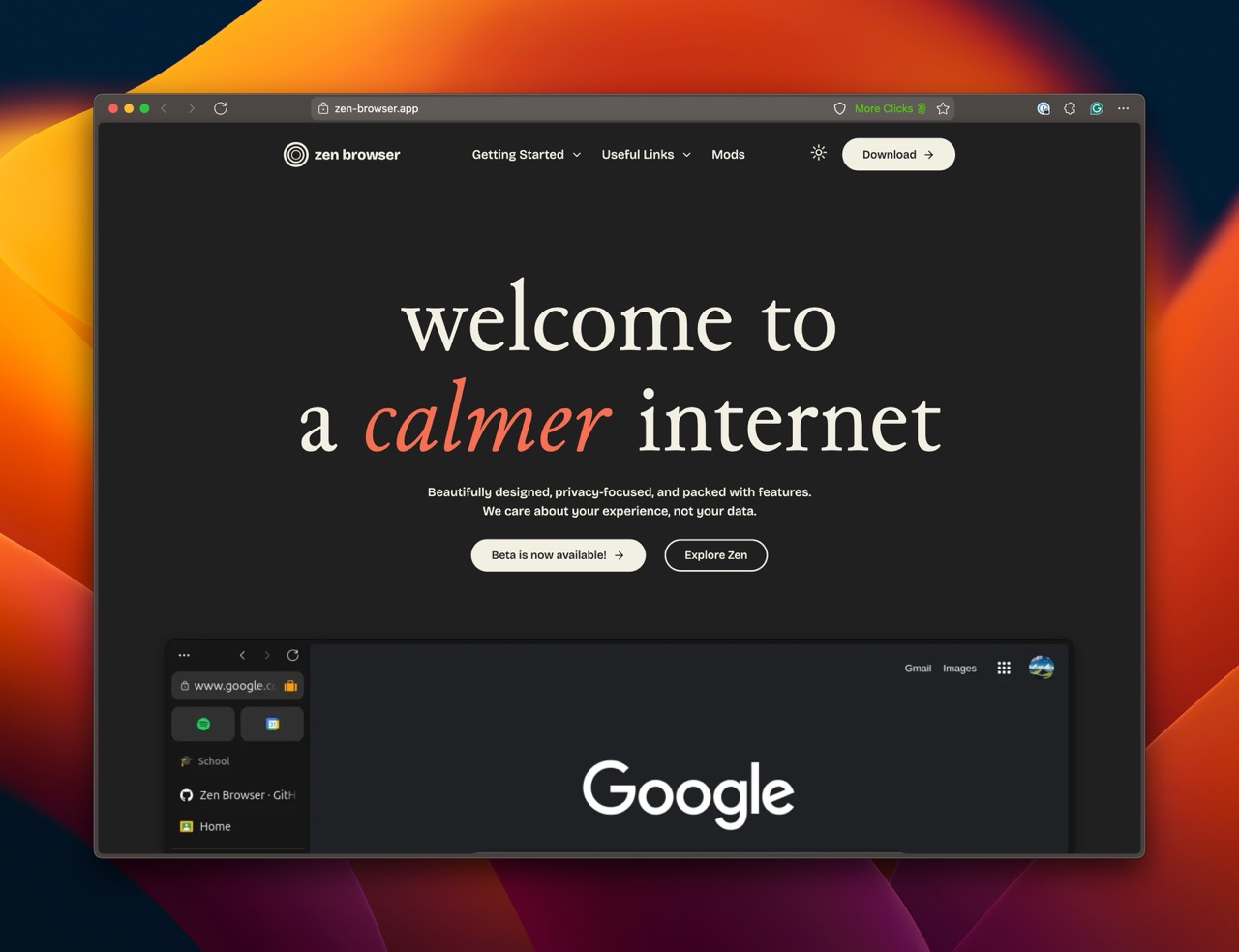
I found Zen in a Reddit thread about Arc alternatives. I liked the interface, and the open-source project and active Discord made me want to give it a go.
In my first week, Zen felt faster and used less memory than Arc on my Mac. The early 2025 updates also improved tab management and workspaces.
When I ran into problems, I could talk to contributors and other users on Discord. I liked being able to do that.
Download Zen Browser
Making Zen Feel Like Arc
I liked Zen as it was, but I kept trying to use it like Arc. Here’s what I changed to make it feel more familiar.
Sidebar & Navigation
I adjusted the sidebar width to match what I was used to in Arc. I preferred Zen’s spacing and hover animations, but missed folders. More on those below.
Favourites
I liked how Arc handled favourites.
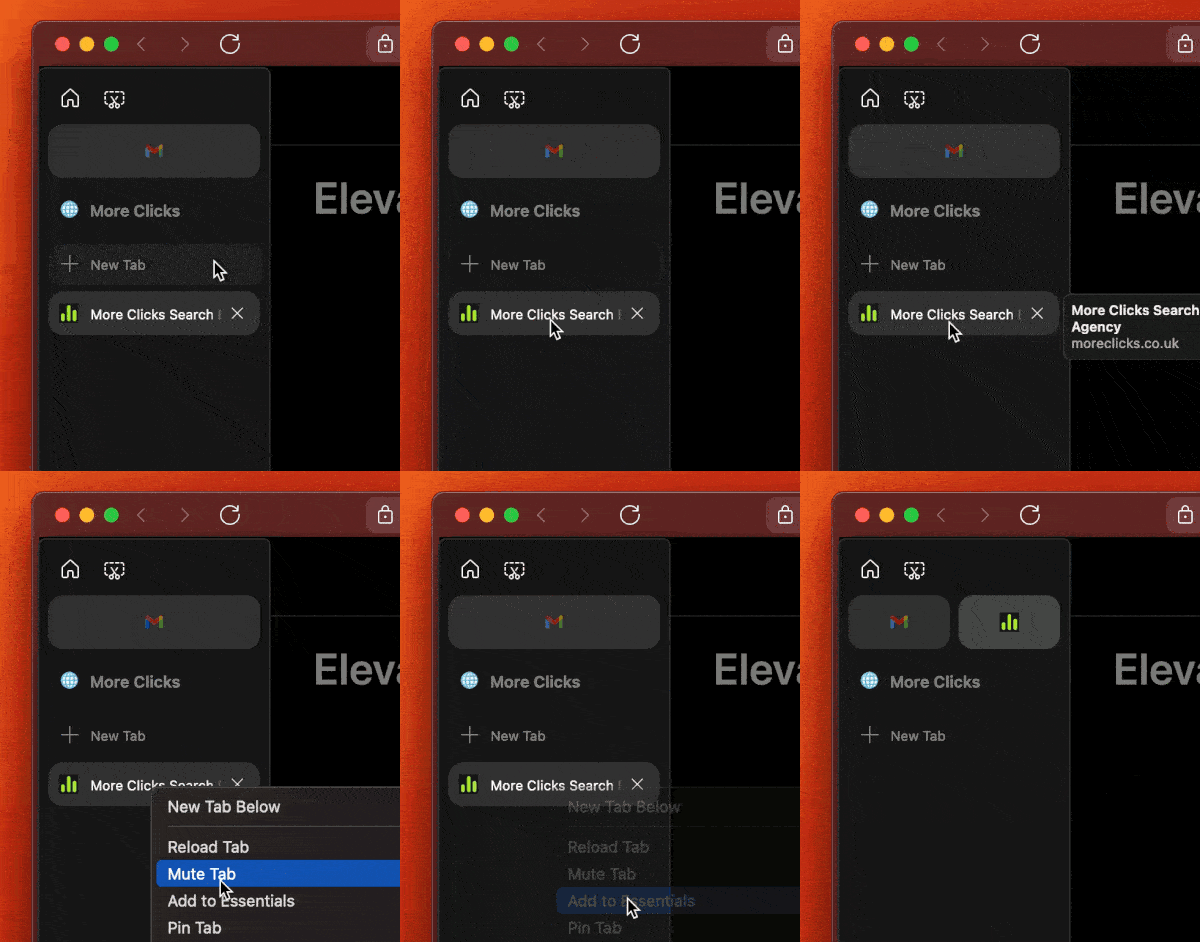
 Although you can’t drag and drop within Zen, you can achieve the same setup by right clicking your desired link and clicking Add to Essentials.
Pinned Tabs
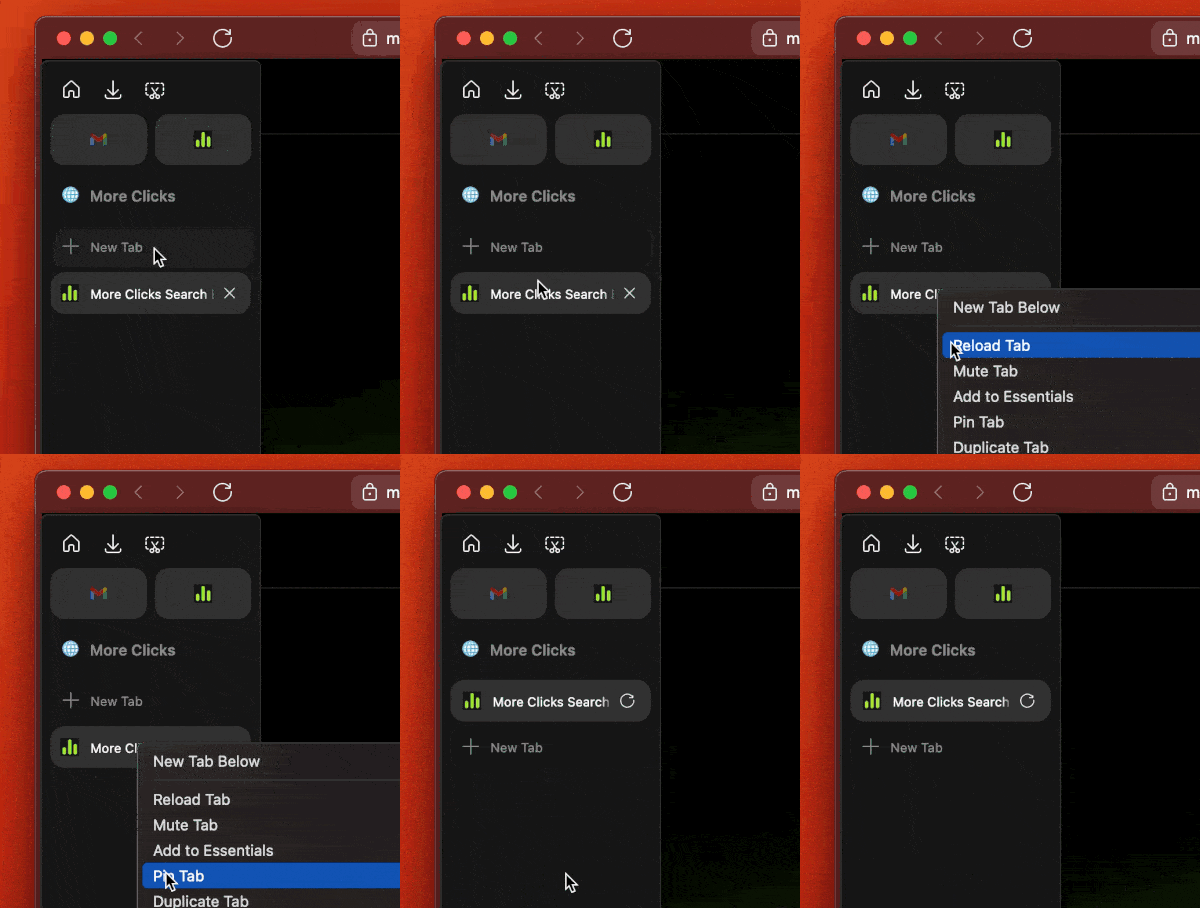
Arc managed to make this flow super well; it was a lovely feature to be able to simply drag and drop. To pin tabs in Zen Browser, all you need to do is right click your chosen Tab and click Pin Tabs.
Folders
Unfortunately, the one downside to Zen is the lack of folder support. I relied heavily on this feature within Arc, organising all of my useful and some not-so-useful information into cascading folders, and it just worked. From a comment on Github, one of the Zen Browser collaborators shared that they plan to add Folders but are waiting for Firefox to finish their implementation of tab groups, and Zen will build on that.
A workaround I found was to add items to your bookmarks and then use the built-in ⌘ + B to open the bookmark side panel. Although it’s a separate panel, it achieves a close workaround.
Workspace Setup
I set up workspaces for work, personal browsing and side projects, with different colours so I could tell them apart.
Zen uses a combination of workspaces and containers; if you want true segregation between your Workspaces, you will need to use separate containers per workspace.
Switching between workspaces felt smoother than it did in Arc, where I’d often get a stutter. I also set up shortcuts so I could switch without reaching for the mouse.
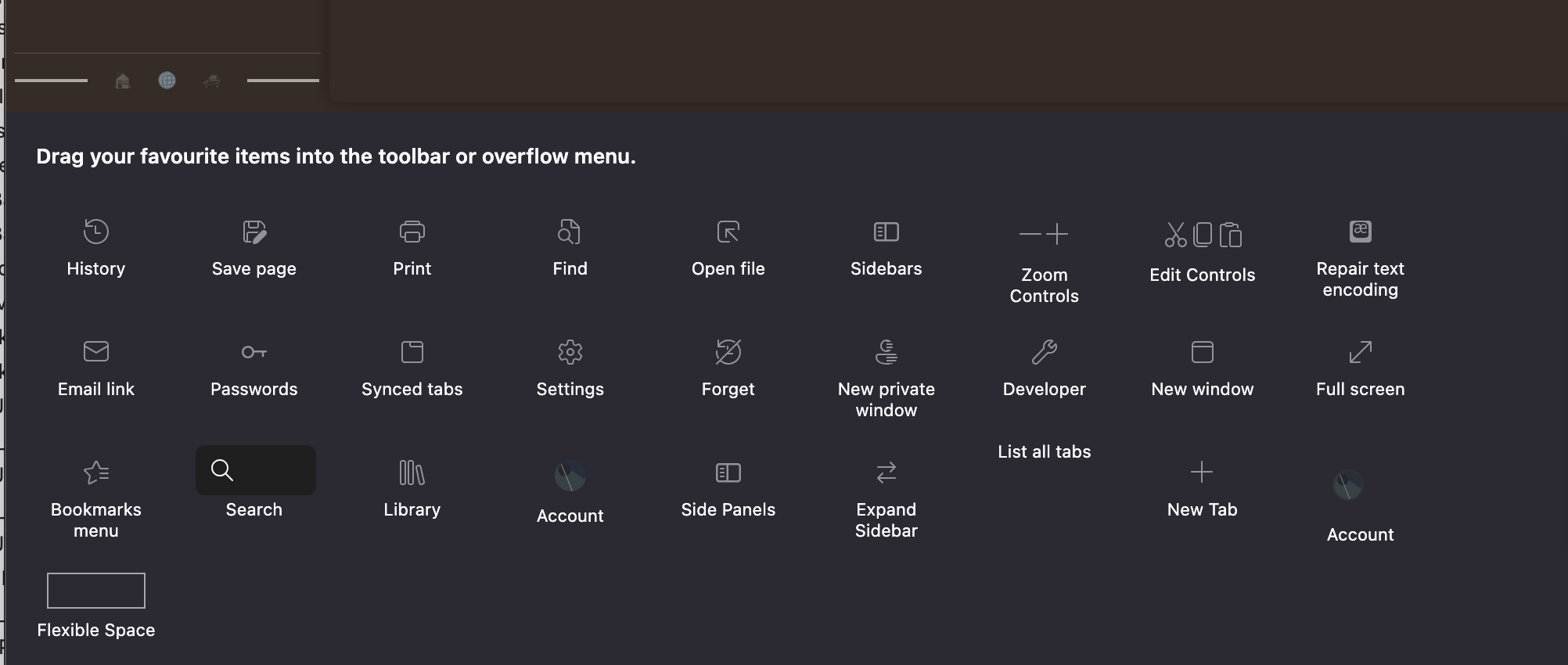
I also recommend customising your Toolbar by right-clicking on your sidebar and clicking Customise Toolbar. This is highly personal preference, but I removed the account option and just had the Workspaces on their own.
Essential Shortcuts
I used Zen’s keyboard shortcut settings to bring over the commands I used most in Arc.
Tab switching
A big one for me was the ability to jump between my current and previous Tabs. I found myself using this all the time, more than I realised until I lost it. Zen’s default tab switching cycles through all of your tabs, and if you’re like me, there are quite a few.
- To change this, open the URL bar and enter this
about:config - Accept the warning; just be careful what you change.
- Using the Search Bar, enter
browser.ctrlTab.sortByRecentlyUsed - Change this option to true
To edit your keyboard shortcuts, navigate to settings, then “Keyboard Shortcuts”
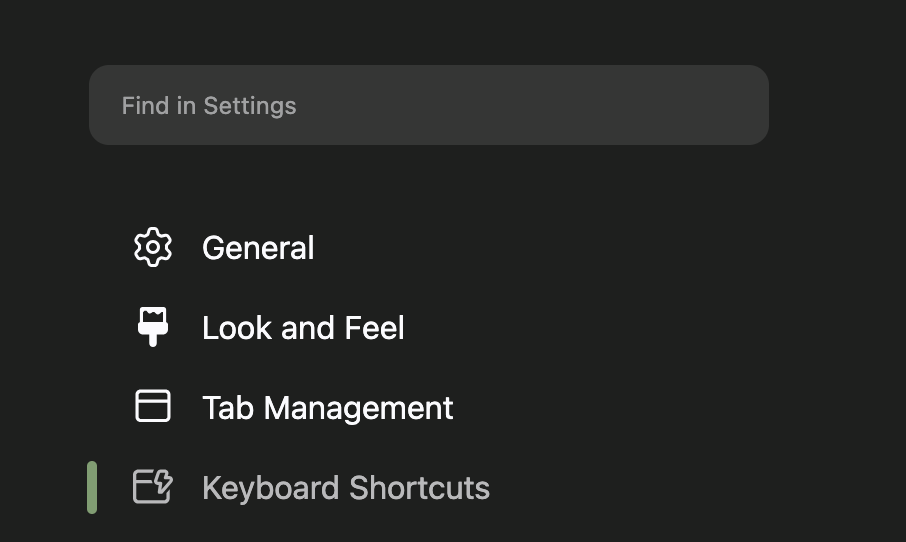
Sidebar Toggle ⌘ + S
- We need to remove the default shortcut for Save Page
- Click into the shortcut box for the Save page and then press Escape. This will unset the shortcut
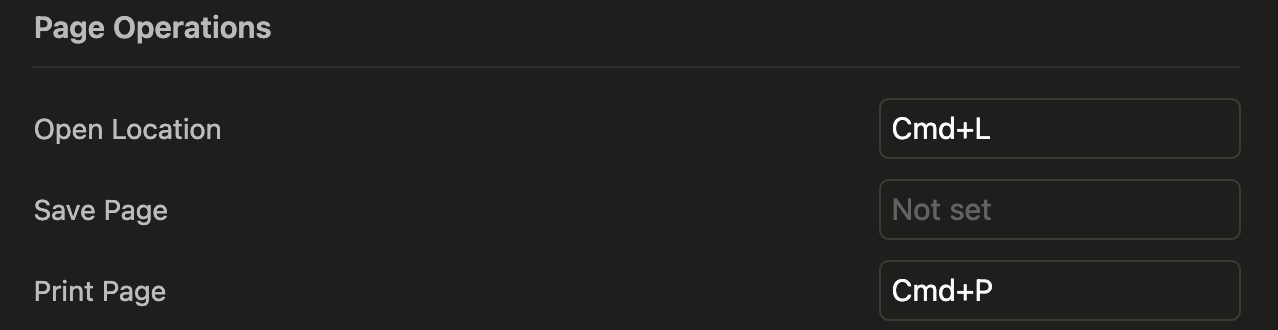
- Click into the shortcut box for the Save page and then press Escape. This will unset the shortcut
- Scroll back to the top, under the heading Compact Mode
2. Click into the shortcut box for Toggle Floating Sidebar and set that to
⌘ + Sthen press Escape to save.
Workspace Switching
Zen uses ⌘ + 1/2/3 to switch tabs within the current workspace. I wanted those shortcuts to switch workspaces instead.
- We need first to remove the Select Tab shortcuts
- Click on each option one by one and press Escape
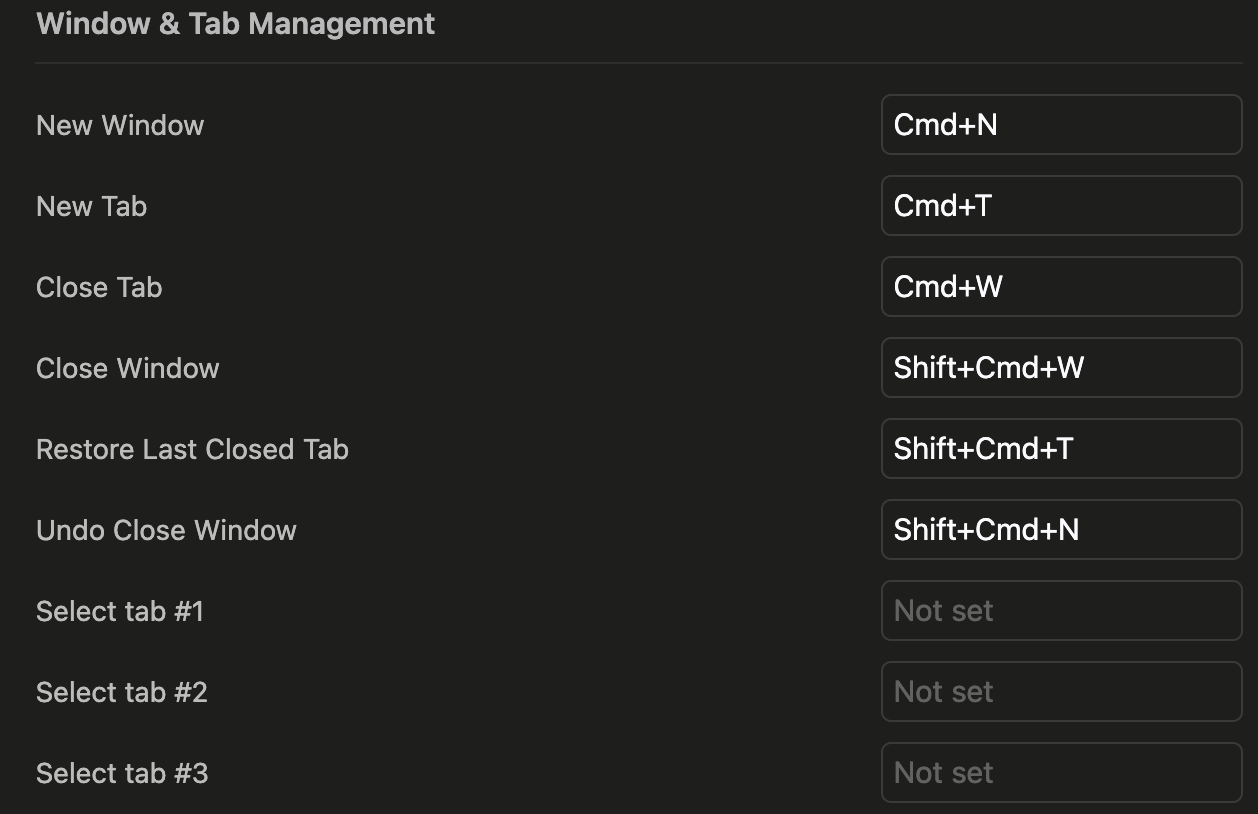
- Click on each option one by one and press Escape
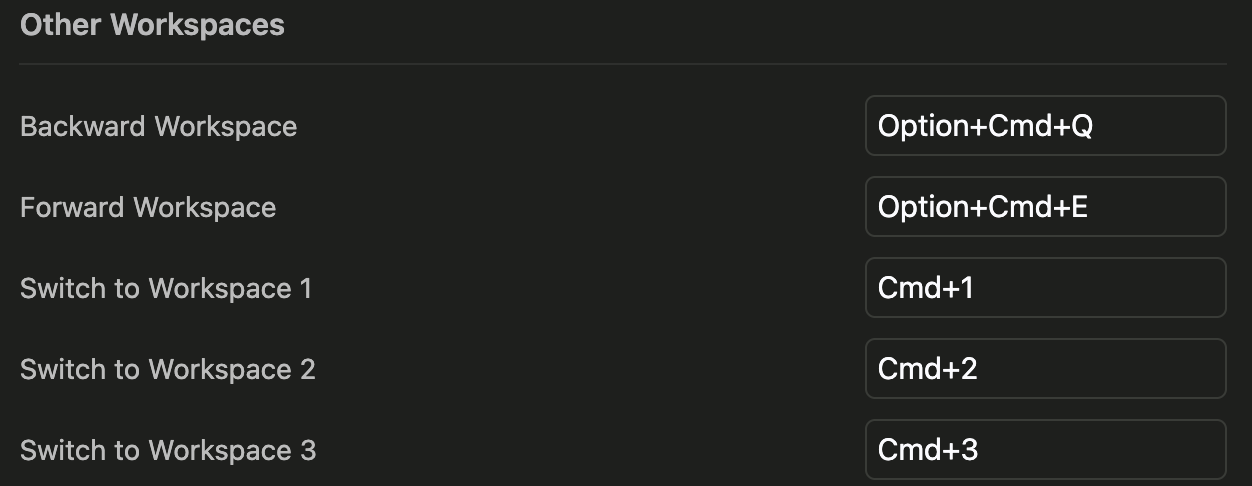
- Then Scroll to Other Workspaces
2. Then for each Switch to Workspace set your shortcut
Conclusion
It took me about two weeks to settle into Zen. I still missed Arc’s folders, but the shortcuts and workspace changes made it feel familiar, and it was easier on my Mac’s battery.
As of February 2025, I’m happy using it as my everyday browser.